
Printing Options & Default Settings
Learn how to download the correct print driver, set your default print preferences, and configure basic copier settings.
Download the Print Driver
Choose the appropriate option for your equipment, then visit our Drivers & Software page.
For All Xerox Equipment
Available download options include:
- PS Driver (PostScript)
- PCL Driver (PCL6)
- Global Driver
- Xerox Print and Scan Experience — a quick and easy way to set up printing and scanning together.
For All Lexmark Equipment
Available download options include:
- Lexmark Universal v2 Driver
- PostScript 3 Driver
- Xerox Print and Scan Experience — also works with Xerox-branded Lexmark equipment for printing and scanning.
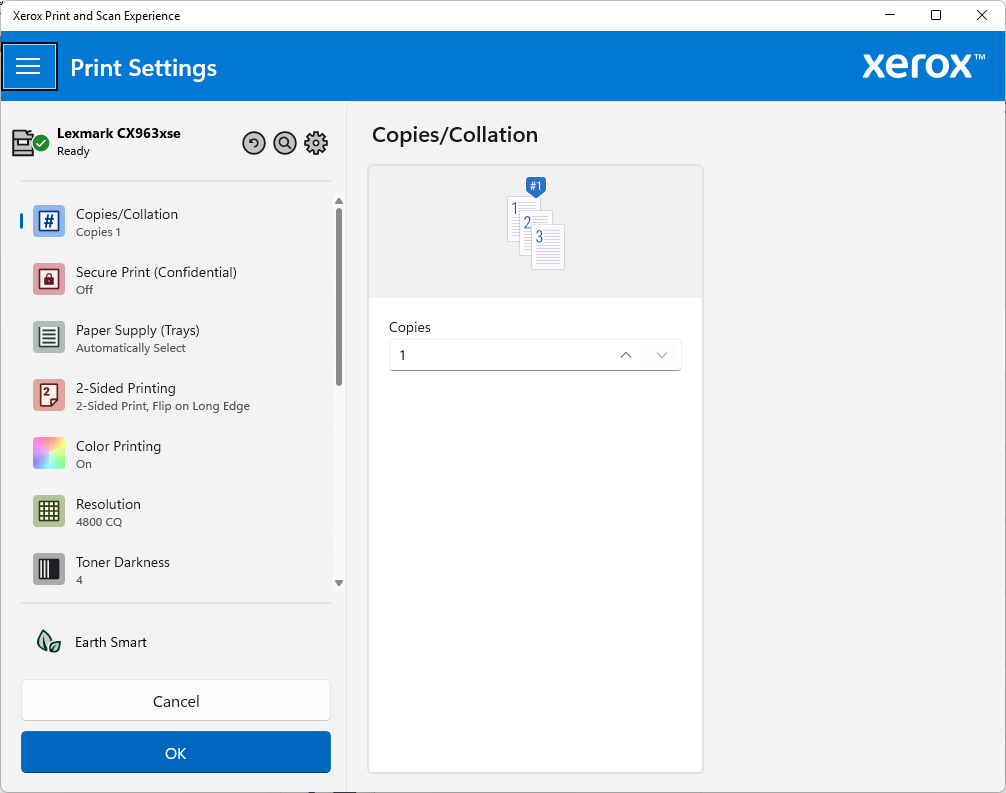
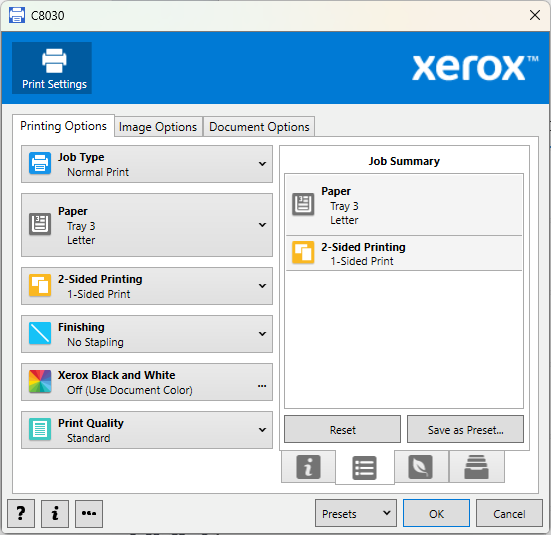
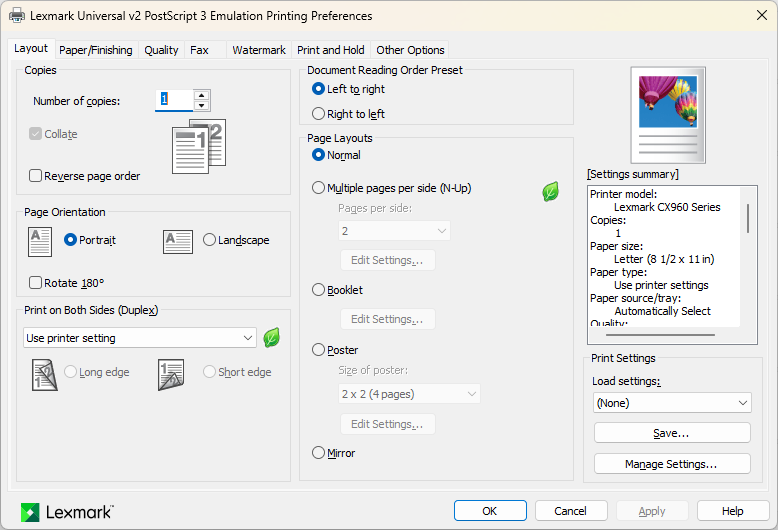
Driver Examples
These are examples of common driver interfaces. Your screen may vary by model.
Set Your Default Print Settings
After installing the driver, set your preferred defaults for future print jobs.
Common Default Settings
- Black & White or Color
- 1-Sided or 2-Sided printing
- Cover page on or off, if available
- Paper size and other preferences
How to Set Defaults
- Open Windows Settings.
- Go to Printers & Scanners.
- Select your printer and open Printing Preferences.
- Adjust preferences and click OK.
Important!
Changes made in Printing Preferences through Windows Printers & Scanners affect future print jobs using those defaults.
Changes made to printing preferences while printing from an application generally apply only to that print job.
Basic Copier Settings
The easiest way to set your machine’s default copying preferences is through the machine’s web interface.
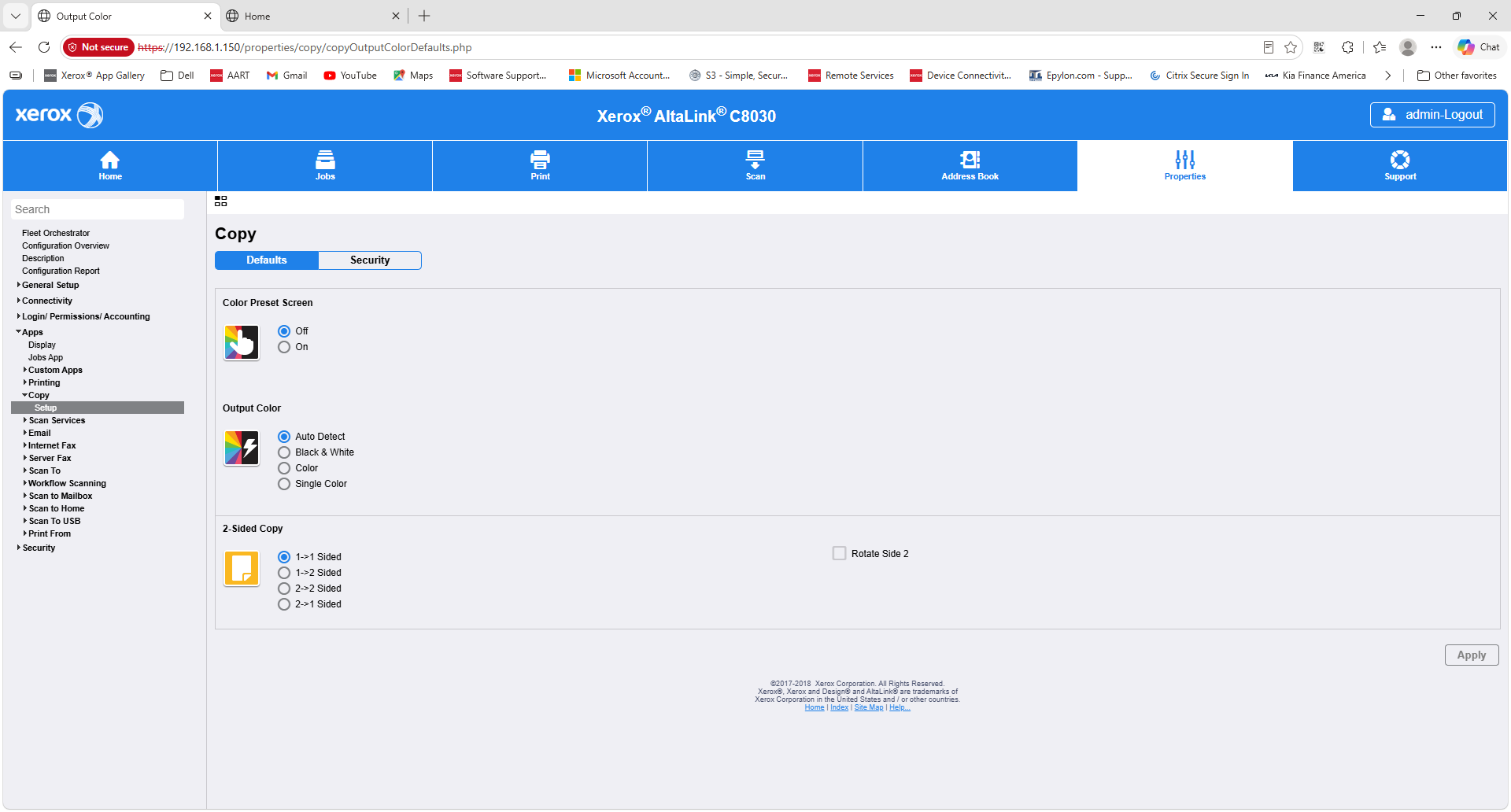
Other copying features can be adjusted directly at the machine’s touchscreen. These can be covered during customer training, or you can contact YDS with specific questions.