
Stop a Cover Page (Banner Page) From Printing
Follow these steps to turn off unwanted cover pages. The final setting depends on your printer driver.
Open Printing Preferences (All Drivers)
These steps are the same regardless of which printer driver you use.
1Search Windows for Printers & scanners and open it.
2Select your Xerox or Lexmark printer from the list.
3Select Printing preferences.
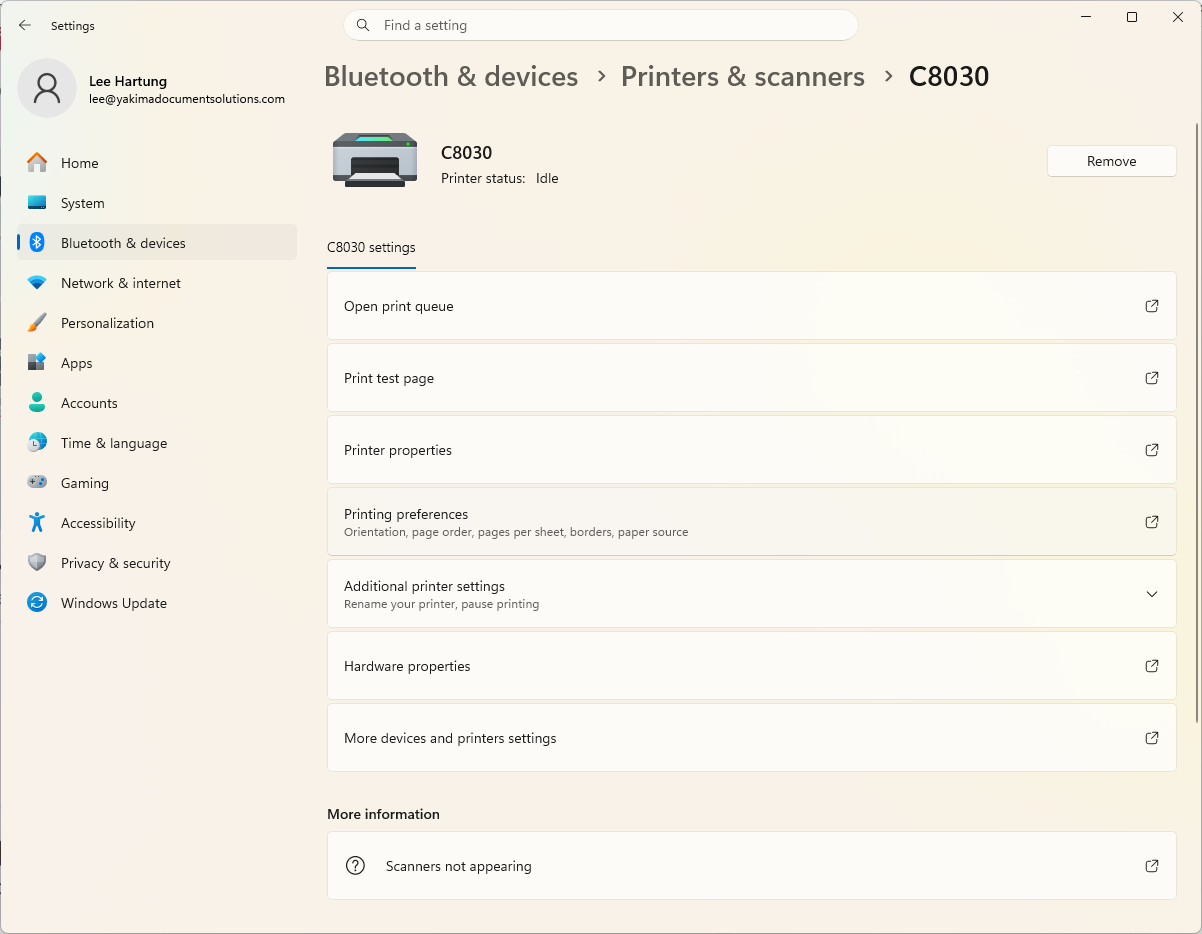 Click to enlarge
Machine-Specific AltaLink Driver
Turn off banner pages in the Earth Smart options.
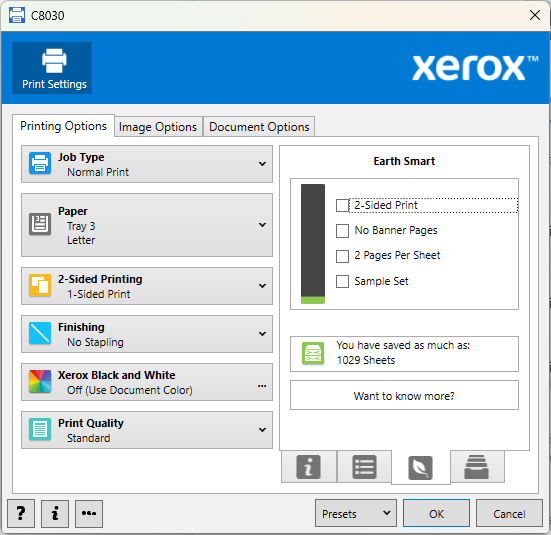 Click to enlarge
- Select the leaf icon (Earth Smart) at the bottom right.
- Check No Banner Pages.
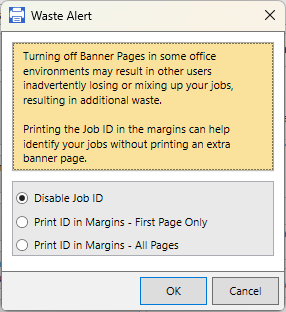 Click to enlarge
- Select Disable Job ID and click OK.
- Click OK again to save your settings.
Older Xerox Driver
Older Xerox drivers may display different settings.
- In Printing preferences, select the Advanced tab.
- Find the Job ID option and select Disable Job ID.
- Select OK to save your changes.
Note: The exact screen may vary by driver version. The Disable Job ID screenshot in the AltaLink section is an example, not an older-driver screenshot.
Xerox Print and Scan Experience (XPSE)
- In Printing preferences, scroll down until you see Job ID.
- Turn Job ID Off.
- Select OK to save your changes.
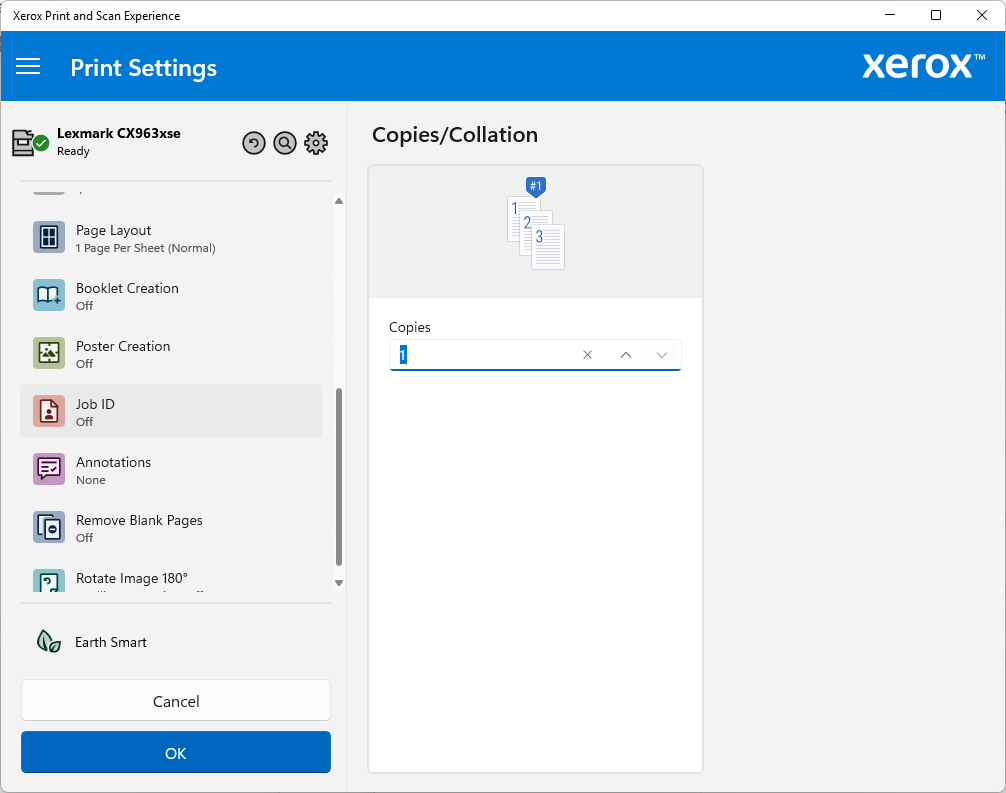 Click to enlarge