
1
Open Printers & scanners
In the Windows search bar, start typing “Printers” and select Printers and scanners.
⌕printers
Printers & scannersSystem settings
Start with the two most common causes: the printer driver and the device IP address.
On most machines, the IP address is displayed at the top center of the screen. If it is not displayed, follow the Device App steps below.
The IP address is usually shown at the top center of the machine’s screen.
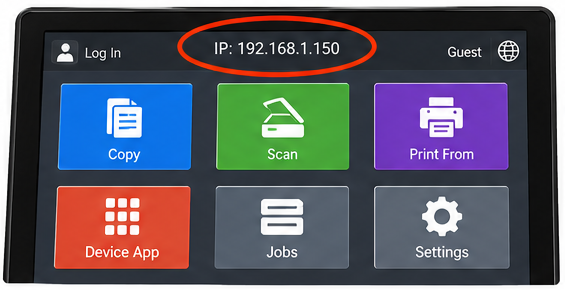
If the IP address is not displayed, select Device App, then About, and scroll down until you see IPv4.
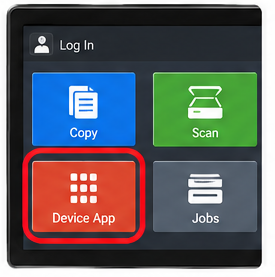
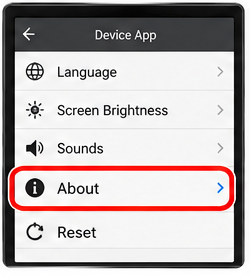
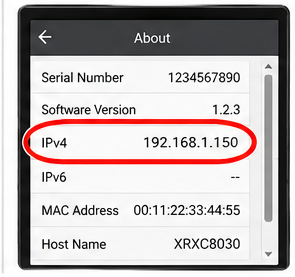
Once you have the current IP address from the machine, follow these steps to update it in the printer driver.
In the Windows search bar, start typing “Printers” and select Printers and scanners.
Locate your printer, select it, then choose Printer properties.
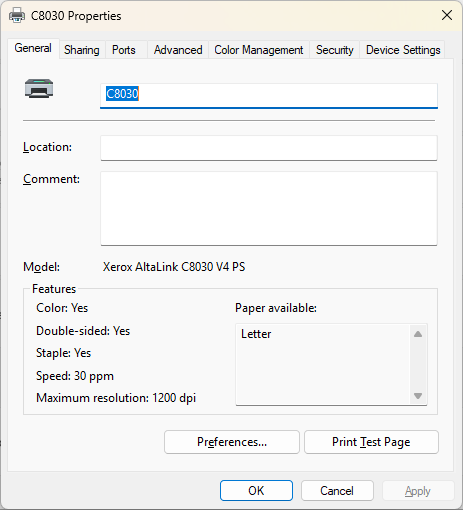
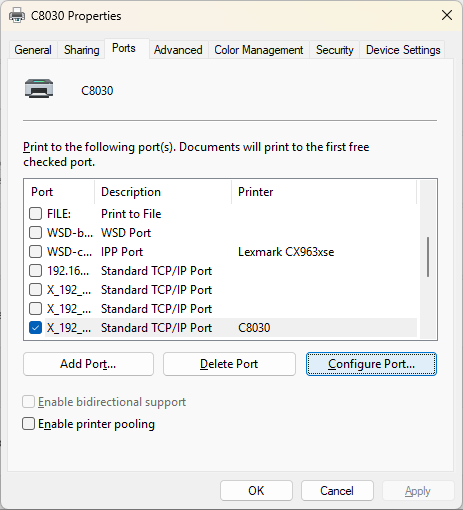
Select Ports, then click Configure Port...
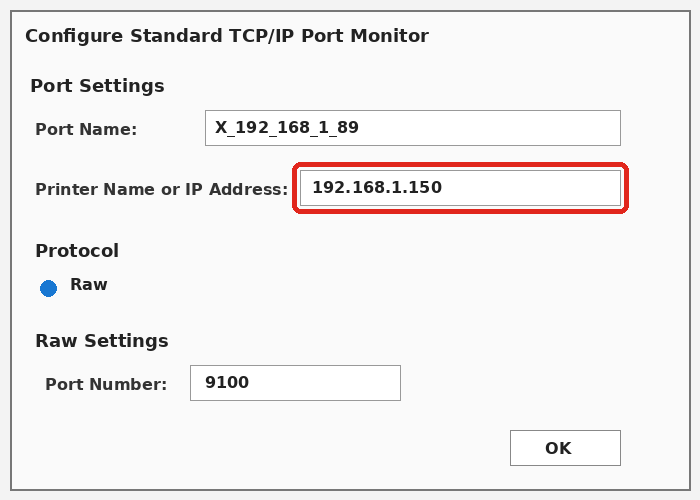
Enter the new address in the Printer Name or IP Address field.
Save the changes and close the open windows.
If the driver will not let you change the IP address, check the printer’s print queue on your PC. There may still be print jobs waiting to be processed. Open the printer’s queue, delete any remaining jobs, and then try changing the IP address again.
If you are still unable to update the IP address, the printer driver may need to be removed and reinstalled.
Go to our Drivers & Software page to download and install the correct driver for your device.
GO TO DRIVERS & SOFTWARE →