
Copy Quality Issues
If your copies have lines, streaks, gray shadows, or don't look as clean as expected, these two simple checks may help.
1Clean the Platen Glass and Scan Window
The machine scans documents using the large platen glass and a narrow rectangular scan window on the left. The narrow window is used when originals pass through the document feeder. Dust or streaks on this glass can create lines or marks on copies.
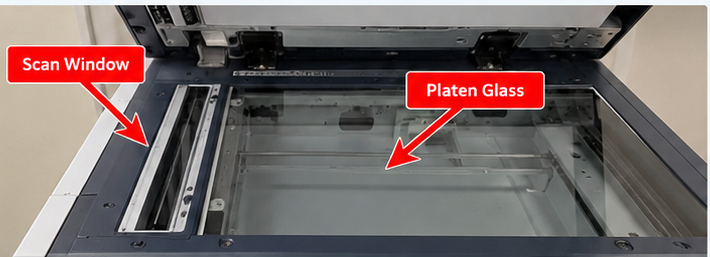
Illustrative view of the platen glass and scan window. Click to enlarge. Layout may vary by model.
2Try Automatic Background Suppression
If your copies show more gray shading than normal, try Automatic Background Suppression. This helps reduce unwanted background shading so the page appears cleaner.
On the machine's Copy screen, scroll down and choose Show Additional Features. Find Automatic Background Suppression and turn it on for a test copy.
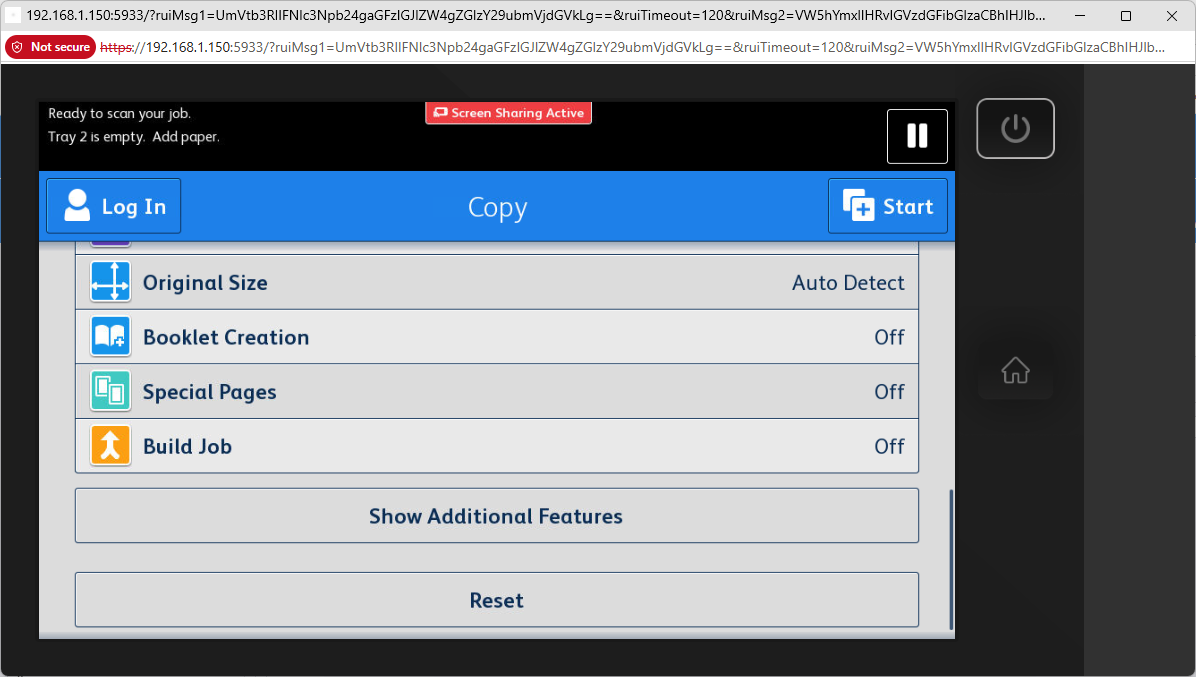
1. Select Show Additional Features. Click to enlarge.
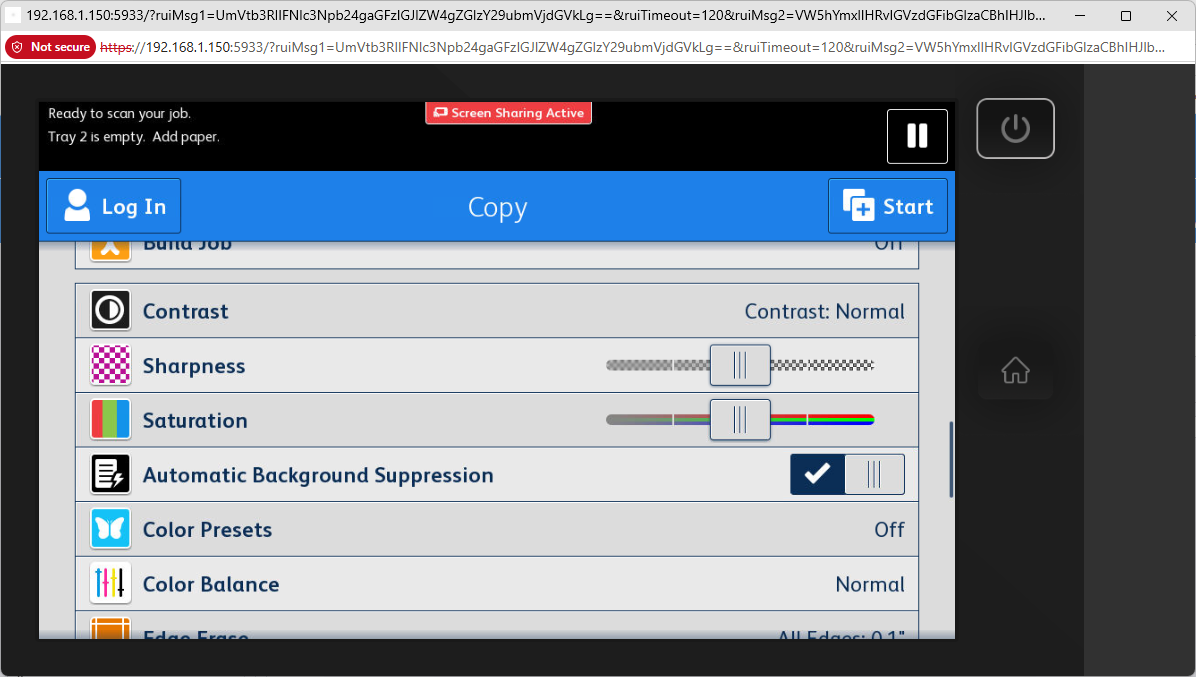
2. Locate Automatic Background Suppression. Click to enlarge.
If This Is a Common Issue
If you regularly copy originals that need background suppression, YDS can help determine whether setting it as a default makes sense.
Otherwise, it's best to leave it off. In some situations, it can remove faint details or cause other unexpected results. Contact YDS for help choosing the best setting for your environment.
Still Having Copy Quality Issues?
If cleaning the glass and trying background suppression don't resolve the issue, contact the Xerox Service Department for assistance.
Find Your Service Hotline →Visit Service & Supplies and enter your machine's serial number (SN) to find the correct service hotline.