
Machine Jamming
If you see a paper jam message, don't start pulling on visible paper or opening doors at random. Follow the instructions on the machine's touchscreen to safely clear the jam and help prevent additional problems.
⚠ Follow the On-Screen Instructions
- The user interface identifies the jam location and walks you through the process step by step.
- Open only the indicated cover or tray, and remove paper only when instructed.
- Never force paper out. It can tear and leave pieces behind.
Why It's Important
Pulling paper too soon can cause additional jams or leave small torn pieces inside the paper path. Those scraps may continue triggering the machine's sensors, even after the visible paper has been removed.
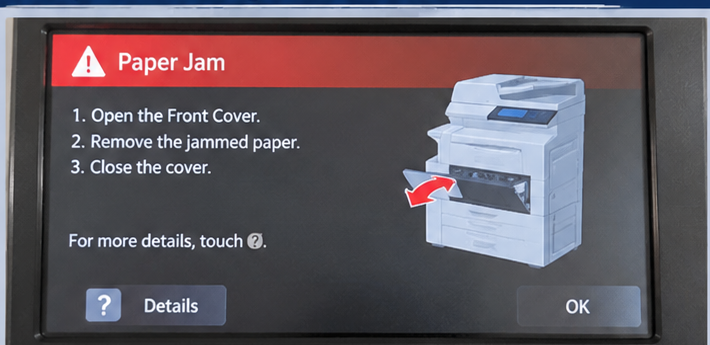
Illustrative example from the approved design, not an actual AltaLink screenshot. The instructions on your machine may differ. Click to enlarge.
- Read the jam message on the touchscreen.
- Open the specific door or tray indicated.
- Carefully remove the jammed paper in the direction shown. Check for torn pieces without reaching into inaccessible areas.
- Close the cover or tray and follow the next screen prompt.
- If the message remains or the jam repeats, contact the Xerox Service Department.
A previous jam may not have been cleared completely. Even a tiny scrap of paper can obstruct a sensor and cause the machine to jam again.
Repeated jams can also be caused by worn feed rollers or other mechanical issues. Xerox's trained service technicians can diagnose the cause and resolve it.
Don't keep forcing paper through the machine—call for service.
If a jam continues, or you're unsure how to clear it safely, contact the Xerox Service Department.
Find Your Service Hotline →On the Service & Supplies page, enter your machine's serial number (SN) to find the correct service hotline.