
Xerox Print and Scan Experience
A simple, easy-to-use Windows app that gives you quick access to printing and scanning features.
How to Download the App from the Microsoft Store
Xerox recommends installing the app from the Microsoft Store. The app is available for Windows 10 and Windows 11.
1
Open the Microsoft Store
On your Windows computer, open the Microsoft Store from the Start menu.
2
Search for Xerox
In the Microsoft Store, search for Xerox Print and Scan Experience.
3
Select the App
Choose Xerox Print and Scan Experience from the search results.
What the App Looks Like
Once installed, open Xerox Print and Scan Experience from the Windows Start menu. Your available printers appear in the app, with quick access to the main functions.
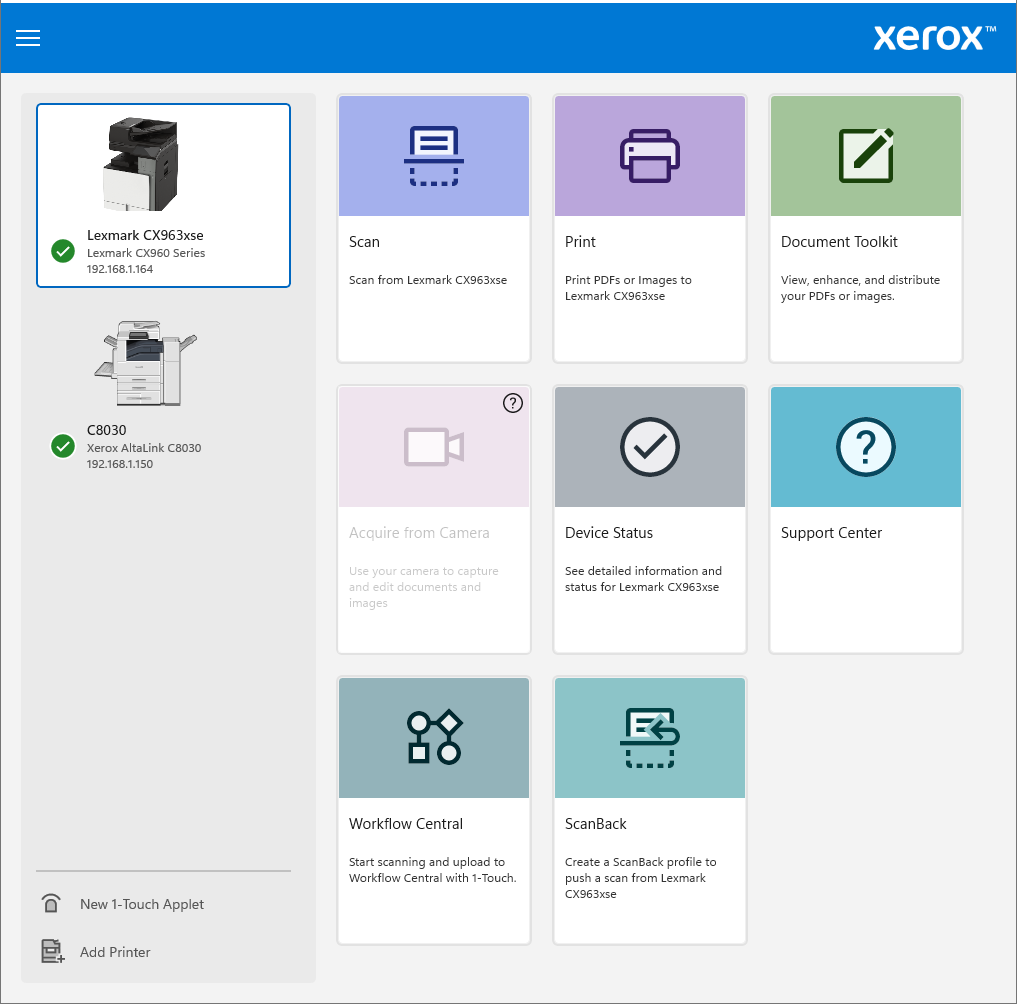
ScanScan documents from your Xerox device and save them to your computer.
PrintPrint documents and photos and access your available print options.
Device StatusSee the connected device and its current status.
Support CenterAccess additional support information when you need it.
Quick Start
1. Select your printerChoose the Xerox device you want to use from the printers shown in the app.
2. Choose Print or ScanSelect the function you need and follow the options on screen.
3. You're ready to goThe app gives you a simple way to access everyday printing and scanning without digging through Windows settings.
Need help? If the app does not see your Xerox device, make sure the printer has already been added to your Windows computer and is connected through a print queue. If you still need help, contact YDS.